
Getting Started - Basic overview
Visit: gps2.lmstracking.com.au
Then enter your login details provided via the account setup email or login sheet from LMS.
Logging in
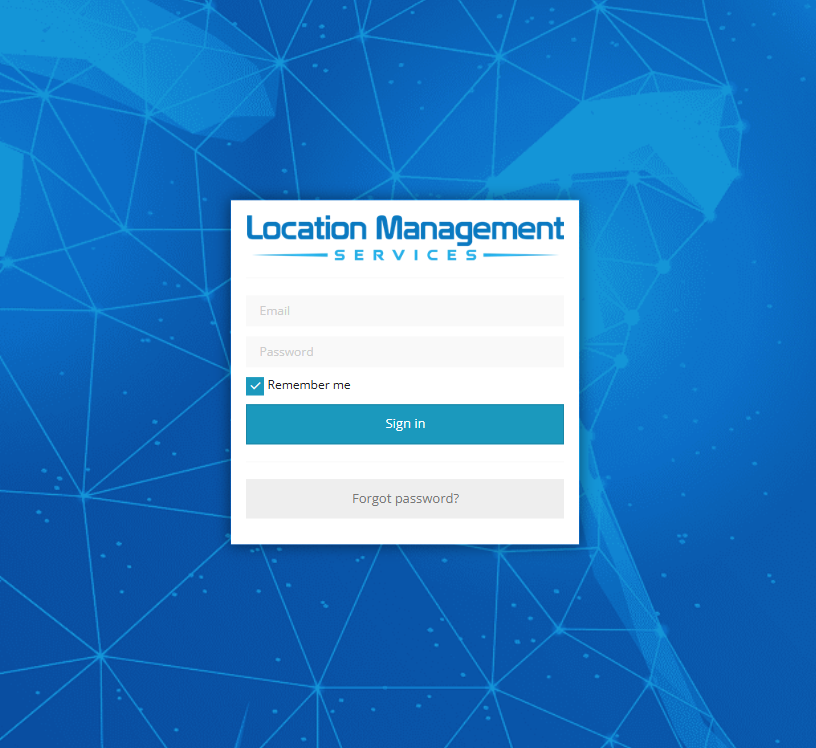
After logging in, you will be redirected to the platform main page. This page varies depending if your a admin operator or basic user.
Users will be directed to the map page and operators will be directed to the admin console
Landing Page
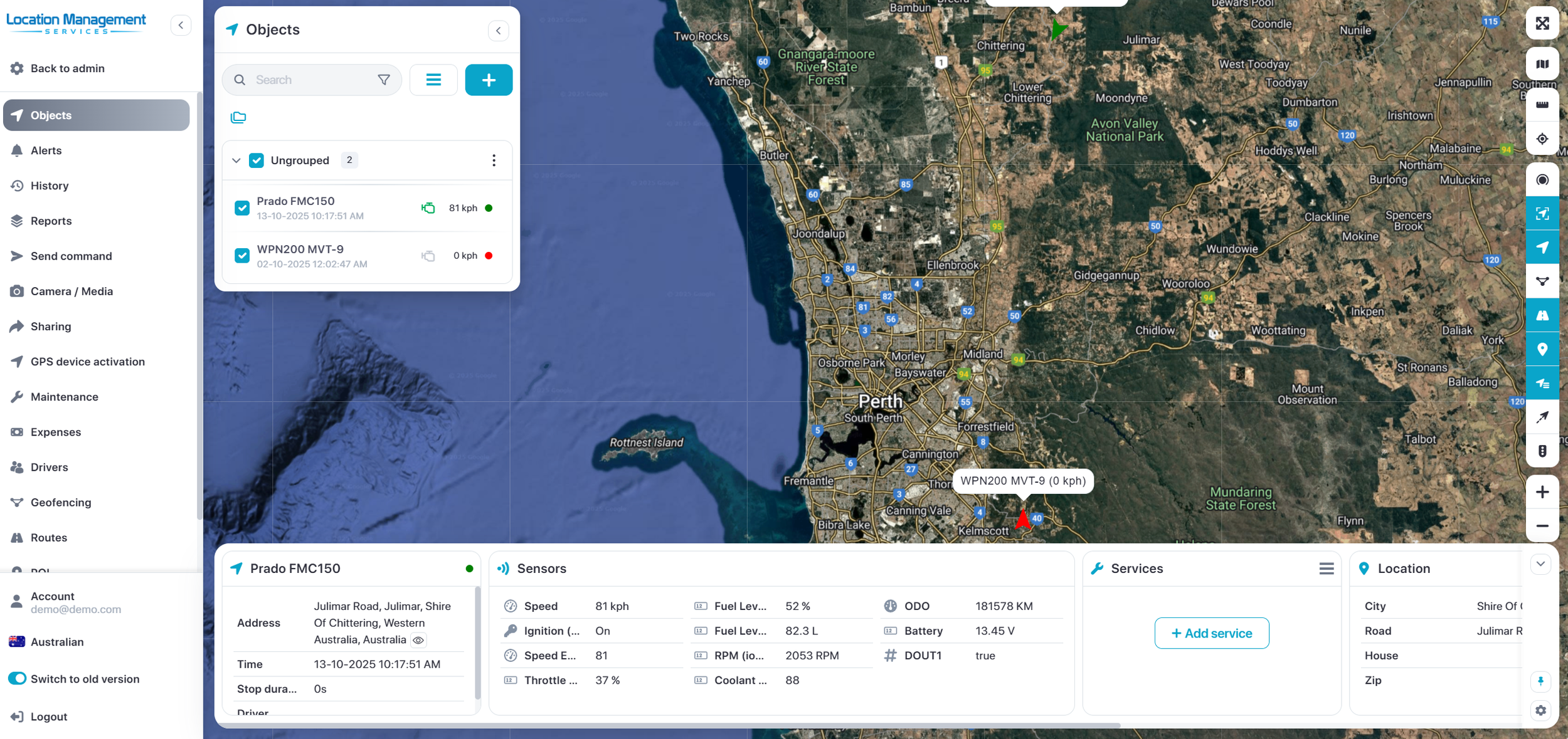
Map Page
The map page allows access to common tracking features and settings, monitor object position on map and get detailed information such as speed, address, coordinates, history and more.
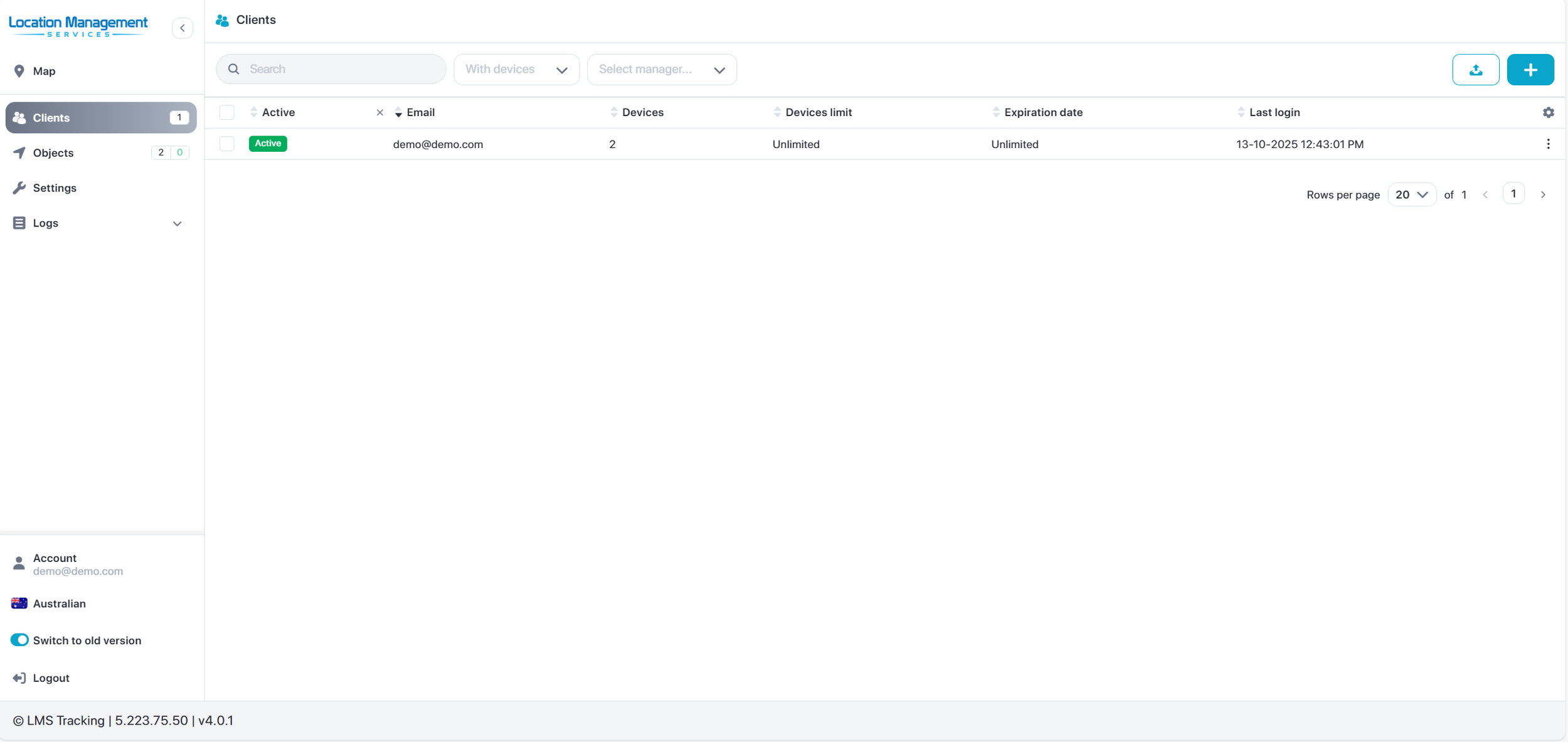
Admin Control Panel
Admin Control Panel
The main use for the operator control panel is to manage sub accounts and objects.
This is very useful for creating employee sub accounts or client accounts for hire companies. You can control the account permissions, object access and more
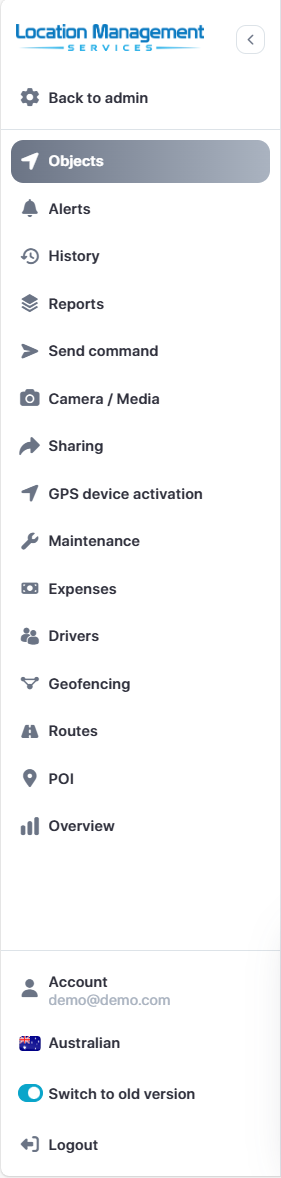
Menu Bar
Menu is used to quickly access frequently used tools, settings and display screens.
You can easily switch between you main map displaying objects to your overview screen containing useful metrics or the admin page for operators to manage the fleet and clients.
You can easily change your language by clicking flag at the bottom left corner.
Note: The menu bar options may vary depending on your access level and permissions.
Map Controls
Full screen mode - hides all tools and shows only gps devices in the map
Change map - change map to streets, sattelite and more
Measure - Measure distance
Address - search for an address or location
Clusters - Group close objects in clusters
Fit object - Fit all object on screen
Objects - show or hide objects in the map
Geofences - show or hide geofences in the map
Routes - show or hide routes in the map
POI - show or hide POI in the map
Show names - show / hide objects names above icon in the map
Show tails - show or hide objects tails in the map
Live Traffic - Shows traffic flow (Google Maps)
Zoom - Zoom in or out on the map

Object Widgets
When you select and object, a widget bar will be displayed showing relevant information for that object. This bar is customisable and can show object address, active sensors, service schedules and more.
